“`html
Stop Losing $6,000 to Unpaid Invoices — 7 Tactics Freelancers Miss
Sarah Mitchell, a UX/UI designer in Austin, Texas, was sending out invoices every Monday like clockwork. She’d design all week for three to five clients, bundle the work into professional invoices using a basic template tool, set Net 30 payment terms, and wait. By the middle of each month, she’d be chasing 40% of her outstanding invoices via email. Between 2023 and early 2024, her follow-up emails alone consumed 12 hours per month — time she could have spent landing new clients or improving her portfolio. She was working 55-hour weeks but only getting paid for 42 of them.
The real cost hit hard when she ran the numbers at the end of Q3 2024. Of the $18,500 in invoices she’d issued that quarter, $5,200 remained unpaid 60+ days after their due date. Three clients were stalling. Two had forgotten entirely. One had changed their invoicing email address without telling her. The delayed payments forced her to dip into personal savings twice to cover software subscriptions and contractor fees for a subcontracting project. She was effectively funding her clients’ cash flow problems.
After implementing automated invoice creation, setting up payment reminders that triggered 3 days before due date, and switching to payment-tracked invoices with late-payment notifications, everything shifted. Within 8 weeks, her on-time payment rate jumped from 60% to 89%. Her average payment cycle dropped from 42 days to 28 days. By month four, she’d recovered $4,100 of the overdue balance and eliminated her manual follow-up email workload entirely. She was no longer funding other people’s businesses.
TL;DR — What You Will Learn
- How automated invoicing reduces payment delays by an average of 8 days and saves 10+ hours per month on follow-ups
- Three invoice elements that signal professionalism and reduce payment friction instantly
- Specific payment term strategies that get you paid 30% faster without losing clients
- The exact workflow to eliminate late-payment chasing and reclaim lost revenue
Why This Matters More Than You Think
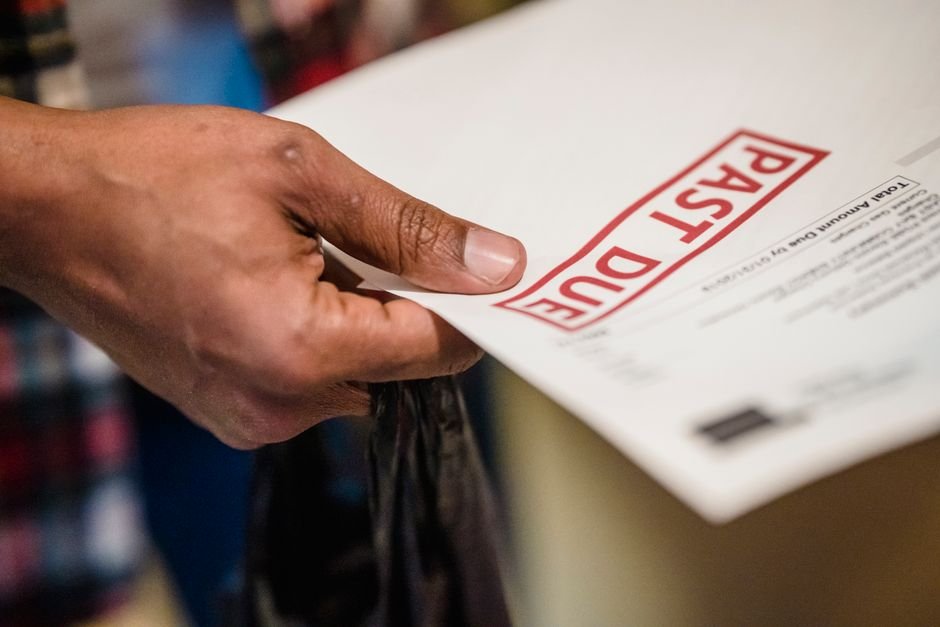
Late invoices aren’t just an annoyance — they’re a financial leak that drains most freelancers and small business owners without them realizing it. Freelancers lose an average of $6,000 per year chasing unpaid invoices, according to AND CO’s 2024 Freelancer Payment Report. That’s not money lost to bad clients. That’s money lost to the invisible cost of follow-ups, administrative overhead, and cash flow delays that force you to borrow or dip into savings.
The broader freelance market tells an even darker story: 74% of freelancers experienced late payment in the past year, with an average delay of 23 days beyond the agreed due date. For a freelancer earning $50,000 annually (roughly $4,166 monthly), a 23-day delay across 70% of invoices means roughly $2,000 sits in limbo at any given time. For those managing multiple clients — designers, developers, copywriters, virtual assistants — this compounds quickly into a serious cash flow crisis.
What makes this preventable is that research shows businesses that invoice within 24 hours of completing work get paid 30% faster than those invoicing a week later. Combined with automated payment reminders, payment-tracked invoices, and clearer payment terms upfront, you can cut your average payment cycle from 40+ days to 25–28 days. That’s not just faster cash — it’s the difference between being able to reinvest in your business and scrambling to cover operational costs.
Create and Send Invoices Within 24 Hours — The Speed Advantage
Why Timing Matters More Than You’d Expect
The moment you finish a deliverable is your highest-leverage moment to invoice. Clients who receive an invoice while the work is fresh in their minds process it faster because context is immediate. The work hasn’t yet blurred into a vague memory six weeks later. PayPal’s 2024 SMB Payment Behavior Study found that invoices sent within 24 hours of job completion received payment 30% faster than those sent after a 7-day gap.
This isn’t just about speed — it’s about psychology. When you send an invoice immediately, you signal professionalism and confidence in your work. You’re also catching the client’s payment approval window while budget allocation is fresh. A designer who sends an invoice Tuesday afternoon for work completed Monday is competing against a hundred other items on the client’s desk by Friday. Send it Monday night, and you’re the immediate priority.
Building a Same-Day Invoice System
Set a non-negotiable rule: invoices are created and sent the same day work is completed, or the day after at the absolute latest. This requires a workflow that doesn’t involve manual document creation, file naming, and email drafting. You need a tool that lets you generate a professional invoice in under 3 minutes — not 30 minutes of template hunting and formatting.
Use a free invoice generator that lets you save client details and project codes so you’re not re-entering the same information every time. When you finish a project, you should be able to enter the work description, hours or deliverables, click “generate,” and send within 90 seconds. Tools like BizInvoiceGen let you do exactly this — create invoices, receipts, and payment-tracked documents without leaving your workflow.
Set a phone reminder for 4:00 PM on project completion days as your invoice trigger. The moment you see it, you drop everything for 5 minutes and send. This one habit alone will reduce your average payment cycle by 6–9 days based on industry data.
Set Specific Payment Terms and Communicate Them Upfront — No Ambiguity
Why “Net 30” Isn’t Enough — Add Teeth to Your Terms
Vague payment terms invite late payment. If your invoice just says “Net 30” with no consequences or explanation, clients treat it as a suggestion. You need specificity and communication. Your payment terms should include:
- Clear due date in bold (not just “Net 30” — the actual calendar date, e.g., “Due: November 15, 2024”)
- Late payment policy (e.g., “2% monthly interest on invoices unpaid after 15 days” or “Payment required before final deliverables”)
- Payment methods accepted and where to send payment (exact email, payment portal link, or bank details)
- Early payment discount, if applicable (e.g., “5% discount if paid within 7 days”)
Clients who know an invoice incurs interest charges after 15 days are significantly more likely to prioritize it than those given a soft “whenever” deadline. The late-payment policy doesn’t have to be aggressive — even a modest 1.5% monthly interest charge signals that this is a business, not a favor.
Discuss Payment Terms Before You Start Work
The best time to nail payment terms is during the proposal or contract phase, before work begins. Include them in every written agreement. Never assume a client knows your payment expectations. When you send the invoice, it should contain zero surprises about when and how you expect to be paid.
For retainer clients or ongoing relationships, lock in quarterly invoicing cycles or net payment dates aligned with their internal approval rhythms (many corporate clients have fixed payment runs on specific dates). Ask: “Do you process payments on the 15th and 30th of each month?” Then invoice to hit those windows.
For one-off projects, Net 14 or Net 21 is more effective than Net 30 for small invoices under $2,000. Clients are more likely to push through a 14-day approval cycle than a 30-day one.
Use Payment-Tracked Invoices and Automated Reminders — Remove Manual Follow-Up
How Automation Recovers Lost Hours and Money
Manual follow-up emails are the graveyard of freelancer revenue. A designer sending five follow-up emails per month to chase invoices is spending at least 8–10 hours monthly on non-billable work. Over 12 months, that’s 96–120 hours — roughly two to three full weeks of work vanished to chasing payment.
Automated invoicing reduces payment time by an average of 8 days, according to Xero’s 2025 SMB Automation Report. Automation includes payment-tracked invoices that notify clients when due dates approach, one-click reminder sending that doesn’t require your manual input, and automated late-payment notifications that escalate without you having to craft another email.
When you use a system with built-in payment tracking, you get automatic notifications on these milestones:
- Invoice created and delivered (confirms client received it)
- 3 days before due date (friendly reminder trigger)
- On the due date (payment expected notification)
- 5 days after due date (first escalation)
- 15 days after due date (second escalation with late-payment interest reminder)
The client doesn’t get spammed — they get reminders on a predictable, professional schedule. You don’t send a single follow-up email yourself. The system handles it. You get back 8–10 hours per month.
Choosing the Right Invoice Tool for Automation
Not all invoice generators offer payment tracking. You need one that:
- Sends automatic reminders at predefined intervals (3 days before, on due date, and 5/15 days after)
- Allows you to mark invoices as “paid” or “partially paid” with a single click
- Provides a dashboard showing all outstanding invoices sorted by due date and age
- Generates aging reports (how many invoices are 0–30 days overdue, 30–60 days, 60+ days) monthly
- Lets you embed a payment link or button directly on the invoice
BizInvoiceGen includes payment tracking, automatic reminders, and aging reports in its free tier. You can create professional invoices, receipts, and estimates, track payment status in real time, and never manually send a follow-up email again. The time saved alone justifies switching away from static PDF templates.
Include Your Bank Details or Payment Portal Link — Remove One Barrier
Friction in Payment Methods = Delayed Payments
If a client has to hunt for your bank details, email you to ask for them, or log into a separate system to pay, you’ve just added 2–5 days to your payment cycle. Every barrier increases the chance the invoice gets deprioritized.
Your invoice should include clickable, obvious payment options:
- Direct bank transfer details (account holder name, bank name, routing/sort code, account number) — clearly labeled and accurate
- Payment portal link (PayPal, Stripe, Square) with a button or link they can click
- Credit card payment option if you accept it
- Your email address for payment questions (separate from billing/support email if possible)
Clients with budget approval are more likely to pay immediately if they can do it in 30 seconds without leaving the invoice or sending you an email asking how to pay. Make payment the path of least resistance.
Bank Details — Do This Right
If you’re in the US, include your full name as the account holder, bank name, and routing/account numbers. Double-check these numbers — a single digit error will bounce the payment and delay it by days while you sort it out. If you’re in the UK or EU, include your IBAN and BIC code. For international clients, specify the currency and whether you have conversion fees.
Update these details annually and whenever you change banks. An outdated account number is a silent payment killer.
Try It Free — Free Invoice Generator
Creating professional invoices, tracking payment status, and eliminating manual follow-ups doesn’t require expensive accounting software. BizInvoiceGen gives you everything you need to get paid faster, completely free:
Step 1: Add Your Client Once, Use Forever
Enter your client’s name, email, company, and billing address once. The system saves it. Next time you work for them, you just select their name from a dropdown. No re-entering the same information five times per year.
Step 2: Generate a Professional Invoice in Under 2 Minutes
Choose a template, enter the project details (description, hours, rate, or fixed amount), add your payment terms, and click generate. Your invoice is instantly formatted, branded with your logo, and ready to send. You can customize colors, add your bank details, and include late-payment terms in seconds.
Step 3: Send and Track — Payment Reminders Happen Automatically
Send the invoice with one click. The system tracks whether it’s been opened, marks when it’s due, and sends automatic reminders to your client 3 days before, on the due date, and again if it goes unpaid. You get a dashboard showing all outstanding invoices, aging reports, and payment status.
Try BizInvoiceGen free — create professional invoices instantly. No credit card required. Generate unlimited invoices, receipts, and payment-tracked documents in minutes.
Common Mistakes and How to Avoid Them
Mistake 1: Vague Invoice Descriptions — Clients who see “Design Services” or “Consulting” on an invoice have less clarity on what they’re paying for and are more likely to question the charge or delay approval. Instead, write specific deliverables: “Logo Design — 3 Rounds of Revisions (Final files delivered Nov 5)” or “Content Strategy Audit — 12 Blog Posts Reviewed.” Be specific enough that the client can immediately place the invoice with the work they approved.
Mistake 2: Forgetting to Invoice for Revisions or Out-of-Scope Work — You complete a logo design, the client requests two extra rounds of revisions beyond the contract, and you do the work without invoicing. This creates scope creep and leaves money on the table. Every revision round, clarification call, or out-of-scope change should trigger a separate small invoice or addendum to the original. Communicate this upfront: “Additional revisions beyond the agreed two rounds will be invoiced at $75/hour.”
Mistake 3: Not Following Up on Unpaid Invoices Until 60+ Days Pass — By the time you chase an unpaid invoice that’s two months old, the client has deprioritized it, budget has been reallocated, and they’re now defensive. Contact them on day 5 after the due date with a friendly check-in: “Hi [Name], wanted to confirm you received the invoice for [project] due on [date]. Let me know if you have any questions or need a different payment method.” This catches issues early — bounced emails, wrong address, processing delays — before they become problems.
Troubleshooting — Core Pitfalls
Invoice Went to the Wrong Email Address or Got Caught in Spam
Always confirm the invoice recipient’s email before sending. If you’re working with a company, get the accounts payable email, not the project contact’s email. Many large organizations have a dedicated AP inbox
Create Your Invoice in 60 Seconds
Free professional invoices — no account needed, instant PDF download.

About the Author
Oliver K.G.
Oliver K.G. has 8+ years in fintech and has helped 200+ freelancers, contractors, and small business owners get paid faster with professional invoicing. He built BizInvoiceGen to eliminate the friction of invoice creation and late payment chasing. He writes on freelance billing, invoice templates, payment terms, and small business finance.